Sharp Canvas Rendering on High-DPI and Retina Screens
Why canvas graphics look blurry on Retina and high-DPI screens, and how to fix it with devicePixelRatio, including resize handling and performance limits.
Core Takeaway
A canvas looks blurry on high-density screens when its pixel size matches its CSS size, because each canvas pixel is stretched over several physical pixels. Fix it by setting the canvas width and height to the CSS size multiplied by window.devicePixelRatio, keeping the CSS size unchanged, and scaling the drawing context by the same ratio. Update it on resize and zoom.
Why canvases blur
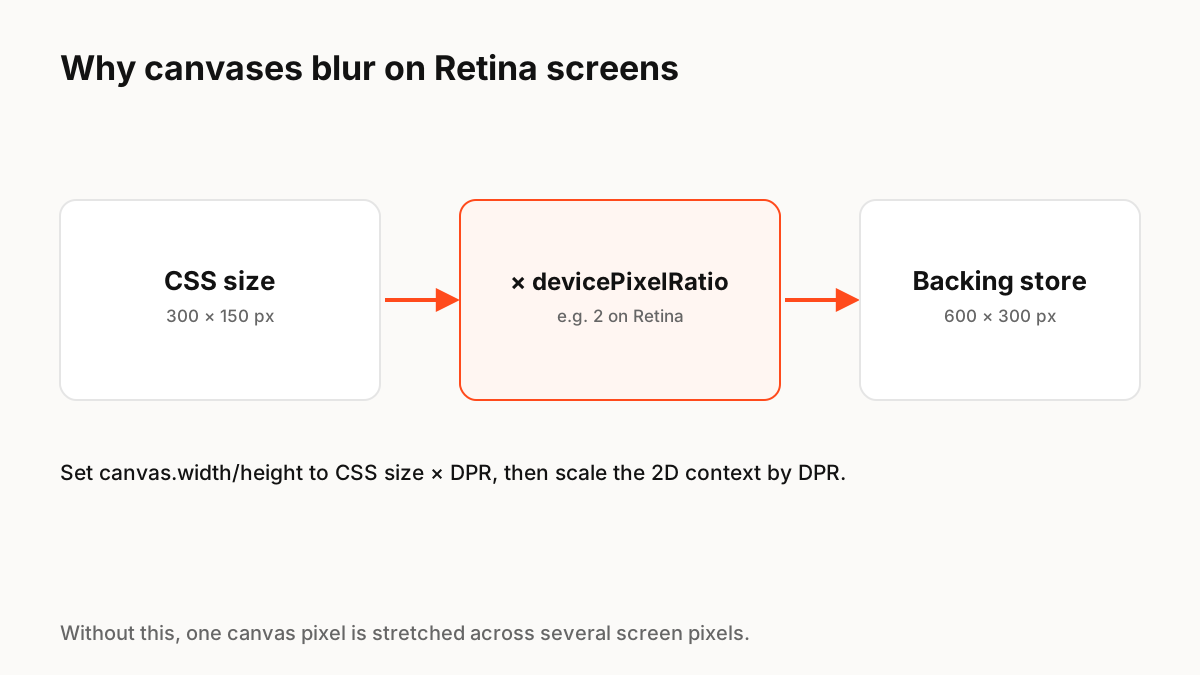
MDN describes devicePixelRatio as the ratio of physical pixels to CSS pixels on the current display: 1 on a classic 96 DPI screen and 2 on typical HiDPI or Retina screens. A canvas has its own pixel buffer. If that buffer is 300 by 150 pixels but shown at 300 by 150 CSS pixels on a screen with a ratio of 2, the browser stretches it over 600 by 300 physical pixels, which looks soft.
The fix
MDN's recommended approach is to use devicePixelRatio to add the extra pixel density: set the canvas buffer to CSS size times the ratio, keep the CSS size the same, and scale the 2D context so your drawing code can keep using CSS pixels. See the code below.
Handle resizes and zoom
The ratio changes when a window moves to another monitor or the user zooms the page. Recalculate on resize, and listen for changes to the resolution media query so you can redraw at the new density. A ResizeObserver on the canvas element is a reliable way to keep the size in sync with layout.
Performance limits
Doubling the ratio quadruples the pixels to draw. On very large canvases or low-end devices, cap the ratio, for example at 2, and measure frame times. Animation runtimes that draw to canvas, such as Lottie's canvas renderer, Rive and ExodeUI, handle this scaling for you, but the same trade-off applies.
Production Implementation Snippet
function setupCanvas(canvas) {
  const ctx = canvas.getContext('2d');

  function resize() {
    const ratio = Math.min(window.devicePixelRatio || 1, 2); // cap for performance
    const { width, height } = canvas.getBoundingClientRect(); // CSS size

    canvas.width = Math.round(width * ratio);   // backing store in device pixels
    canvas.height = Math.round(height * ratio);
    ctx.setTransform(ratio, 0, 0, ratio, 0, 0); // draw in CSS pixels
    draw(ctx, width, height);
  }

  new ResizeObserver(resize).observe(canvas);
  resize();
}

function draw(ctx, width, height) {
  ctx.clearRect(0, 0, width, height);
  ctx.lineWidth = 1;
  ctx.strokeRect(0.5, 0.5, width - 1, height - 1); // crisp 1px border
}
Key Principles to Remember
- devicePixelRatio = physical pixels per CSS pixel (2 on typical Retina screens)
- Set canvas.width/height to CSS size × ratio; keep the CSS size
- Scale the context so drawing code uses CSS pixels
- Recalculate on resize, monitor change and zoom
- Cap the ratio on large canvases for performance
Frequently Asked Questions
Sources
- Window: devicePixelRatio property — MDN Web Docs