MCP for Designers: Connecting Figma, Tokens and Code to Claude and Cursor
What the Model Context Protocol means for designers, which design tools have MCP servers, how to connect them to Claude Code and Cursor, and what to watch out for.
Core Takeaway
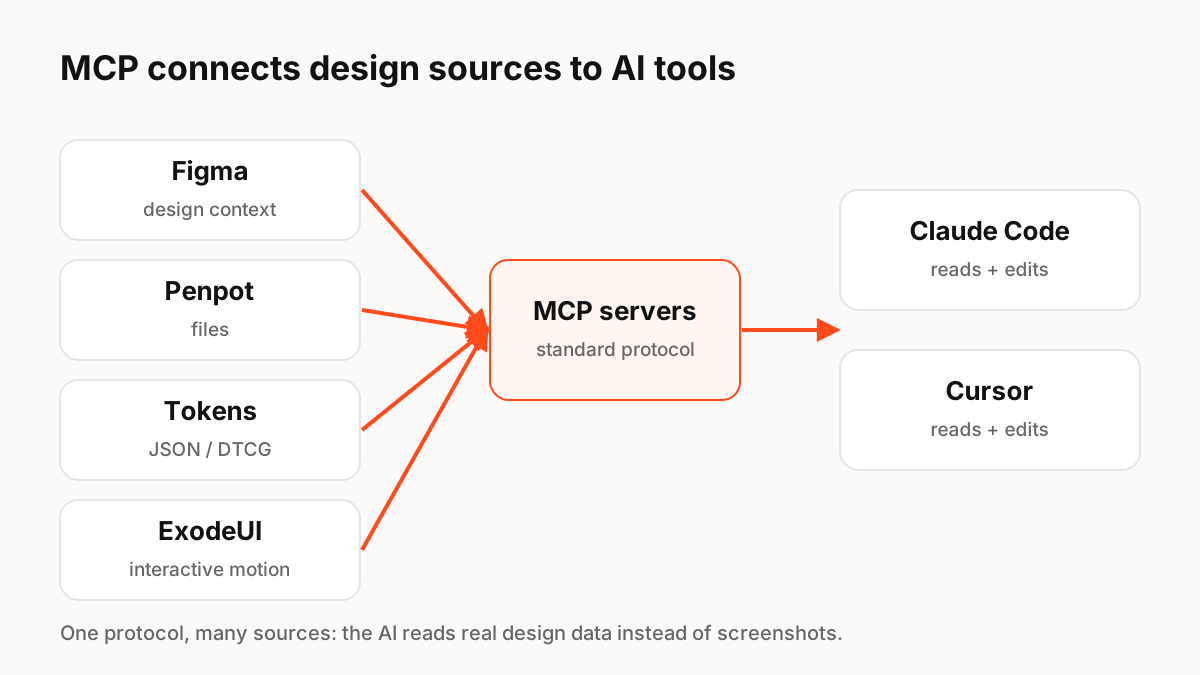
MCP (Model Context Protocol) is an open standard that lets AI tools such as Claude Code and Cursor connect to other software. For designers, it means an AI coding tool can read real design data, like frames, components, variables and tokens, instead of guessing from screenshots, and in some tools it can write changes back. Figma, Penpot and ExodeUI all offer MCP servers.
What MCP is, in plain words
The official MCP documentation describes it as an open-source standard for connecting AI applications to external systems, such as files, databases and tools. One of its own examples is Claude Code generating an entire web app from a Figma design. For a designer, the important part is this: the AI no longer has to guess what your design looks like. It can ask the design tool directly.
Design tools with MCP servers today
As of October 2026:
- Figma: an MCP server that gives agents design context (variables, components, layout) for code generation, and can write native content back to the canvas. Figma lists it on Starter and paid plans; canvas writing is free during its beta.
- Penpot: a free, open MCP server that works with any MCP client, including Claude, Cursor, VS Code and OpenAI Codex, and can be self-hosted.
- ExodeUI (we make it): an MCP server that lets AI coding tools create and edit interactive animations with states and spring physics.
- Design tokens: if your tokens live in a repository as JSON, an AI coding tool can already read them as files; a dedicated server is only needed for tokens stored inside a tool.
How designers actually use it
The most common workflows are practical rather than magical. Developers select a frame and ask the AI to implement it with the existing component library. Designers ask the AI to check whether a coded screen matches the design and list differences. Teams ask the AI to update a component's tokens across the codebase. And increasingly, designers use the AI to draft variants directly on the canvas, then refine them by hand.
Connecting a server
Claude Code adds servers with the claude mcp add command or through a .mcp.json file in the project, and supports remote HTTP servers as well as local ones. Cursor manages MCP servers in its settings and supports local (stdio) and remote servers. Remote servers usually ask you to sign in once with OAuth. Each vendor documents the exact command or URL for its server.
What to watch out for
MCP gives AI tools real access, so treat it like any integration:
- Permissions: an agent that can write to the canvas or repository can also make mistakes. Use version history and review changes.
- Privacy: check where design data goes and whether your plan allows it.
- Cost: some write features are free in beta and planned to become usage-based.
- Quality: AI output follows your design system only if the system is well structured, with named components and tokens.
Key Principles to Remember
- MCP is an open standard for connecting AI tools to other software
- It lets AI read real design data instead of screenshots
- Figma, Penpot and ExodeUI offer MCP servers
- Claude Code and Cursor both support local and remote servers
- A well-structured design system matters more than the tool
Frequently Asked Questions
Sources
- What is the Model Context Protocol (MCP)? — modelcontextprotocol.io
- Guide to the Figma MCP server — Figma Help Center
- Penpot MCP server — Penpot
- Connect Claude Code to tools via MCP — Claude Code docs
- Model Context Protocol (MCP) — Cursor docs