Swipe-to-Action UX: Making Hidden Gestures Discoverable and Safe
How to design swipe actions in lists: signifiers, thresholds, full-swipe commits, undo, accessibility, and why swipe should never be the only way.
Core Takeaway
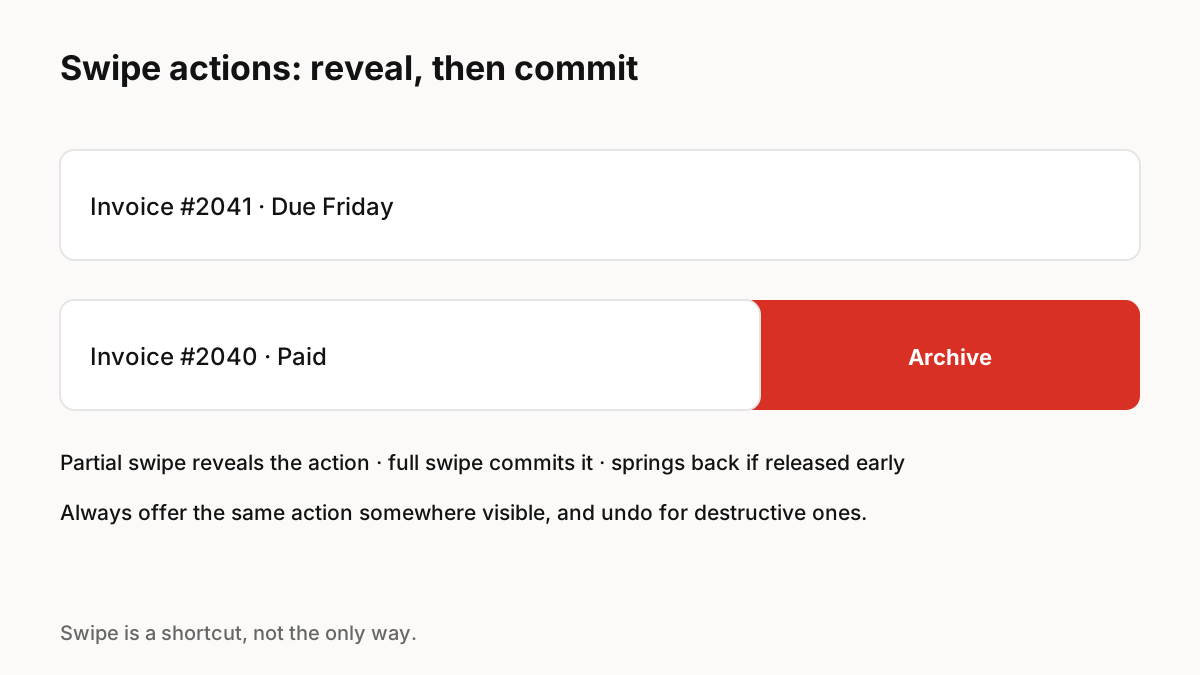
Swipe actions are a fast shortcut for frequent list actions such as archive or delete, but they are hidden, so they must never be the only way to do something. Use them for expected actions, show a clear threshold as the item moves, let a partial swipe reveal and a full swipe commit, and offer undo for destructive actions.
The usability problems
Nielsen Norman Group found recurring problems with swipe-to-reveal actions: a lack of signifiers makes it unclear where swipe works, nonstandard actions behind swipe surprise people who expect delete or archive, hiding many actions behind a swipe makes them hard to discover, and swipe can be ambiguous when the same gesture also navigates between sections.
How swipe actions should behave
Material Design describes the common pattern on Android: list items can reveal buttons on swipe, and the primary action is the final, end-aligned option, which a full swipe triggers directly.
- Keep swipe for frequent, expected actions: archive, delete, mark as read.
- Show the action and its colour as the item moves, and change it visibly at the commit threshold.
- Spring the item back if released before the threshold.
- Offer undo, or ask for confirmation, for destructive actions.
- Do not mix horizontal swipe actions with horizontal swipe navigation on the same screen.
Never the only way
Because swipe is invisible, put the same actions in a visible menu, long-press menu or detail screen. This also covers accessibility: screen reader users and people who cannot perform precise gestures need a non-gesture route, and platforms provide accessibility actions for exactly this purpose.
Motion makes swipe feel trustworthy
The item should track the finger exactly, and on release a spring that carries the finger's speed makes the commit or snap-back feel physical. A brief haptic tap at the threshold, where the platform supports it, confirms the action before the finger lifts.
Key Principles to Remember
- Swipe is hidden: always provide a visible alternative
- Use it for frequent, expected actions
- Partial swipe reveals, full swipe commits, early release springs back
- Undo or confirm destructive actions
- Avoid conflicting horizontal gestures on one screen
Frequently Asked Questions
Sources
- Using Swipe to Trigger Contextual Actions — Nielsen Norman Group
- Lists guidelines — Material Design 3