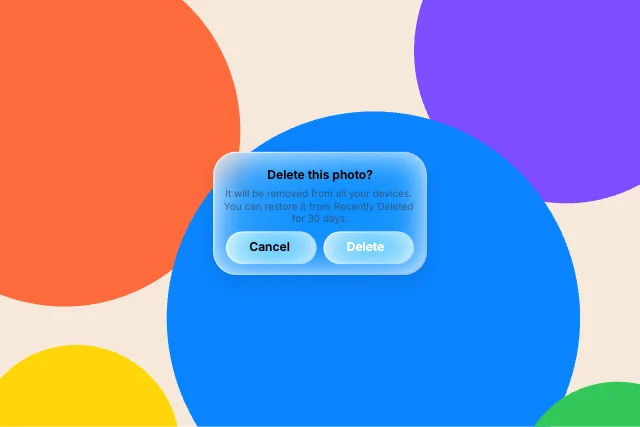
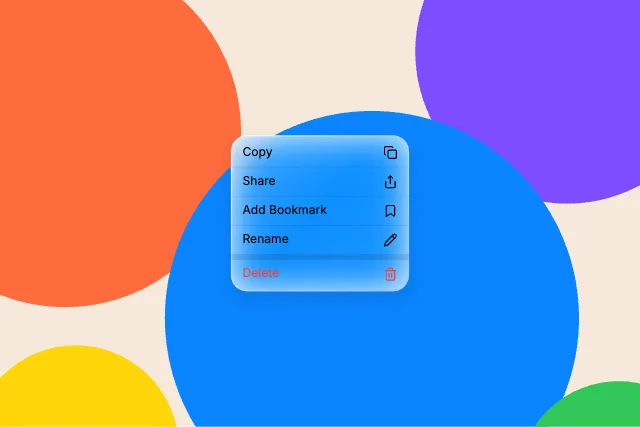
Context menuMenus & sheets
How to use it
- Open it in ExodeUI
The button above puts this exact file in the editor, free. Or insert it yourself from Liquid Glass Studio in the Plugins menu.
- Make it yours
Change colours, type, motion curves and springs. It stays a native liquid glass component, so nothing turns into a flat picture.
- Export one file
Export .bexode (smallest) or .exode (readable JSON). The same file plays in every runtime.
- Wire it up
Drop it in. It plays on its own and answers the pointer. The code below uses its real names.
npm install exodeuiimport { useEffect } from 'react';
import { ExodeUICanvas, useExodeUI } from 'exodeui';
export function Alert() {
const { engine, setEngine, updateInput, fireTrigger } = useExodeUI();
useEffect(() => {
}, [engine]);
return (
<>
<ExodeUICanvas src="/alert.bexode" onReady={setEngine} />
</>
);
}Featured in
More like this

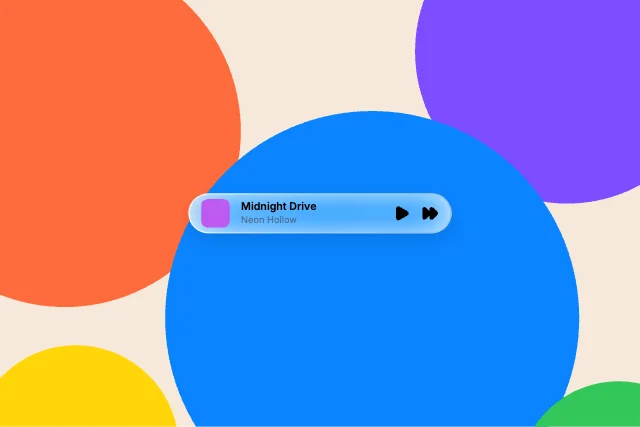
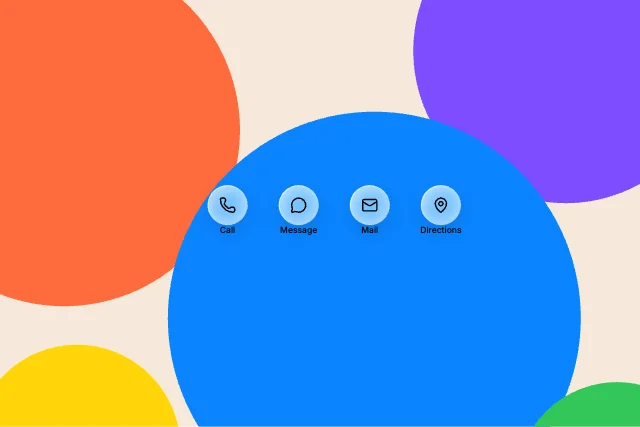
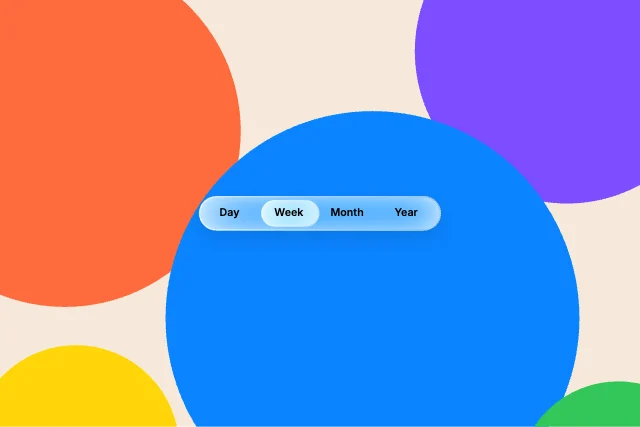
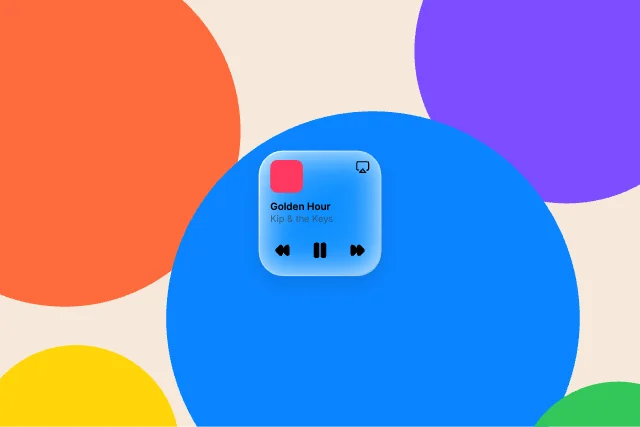
Questions
How do I add the Alert liquid glass component to my app?
Open it in ExodeUI (free), export the .bexode file and play it with the ExodeUI runtime for your stack. The code tabs on this page use its real file and input names.
What can my code control?
It has no inputs; it reacts to the pointer and plays its own motion.
Can I change how it looks or moves?
Yes. In the editor it is a native widget: colours, type, springs, timing and logic are all editable.
Make your own in ExodeUI
Free to start. Every studio behind this library is built into the editor, and everything it makes stays native and editable.
Try ExodeUI for free