Agentic UI States: How to Show AI Thinking, Tool Calls and Progress
How to design the states of an AI agent run: received, thinking, tool calls, streaming, done, stopped and failed. Patterns, timing and examples.
Core Takeaway
An agent run needs more states than a normal request: received, thinking, each tool call, streaming the answer, done, stopped and failed. Show each one differently, name the step the agent is on, let people stop the run at any time, and finish with a short summary of what was done. Keep low-level detail available but collapsed.
Why agent runs need their own states
A classic request has two visible states: loading and done. An AI agent run is different. It can take seconds or minutes, it moves through several steps such as searching, reading files or calling an API, and it can take actions with consequences. Response-time research from Nielsen Norman Group still applies: about 0.1 seconds feels instant, about 1 second keeps the flow of thought, and after about 10 seconds people need feedback about what is happening and roughly how long it will take. Most agent runs land in that last group.
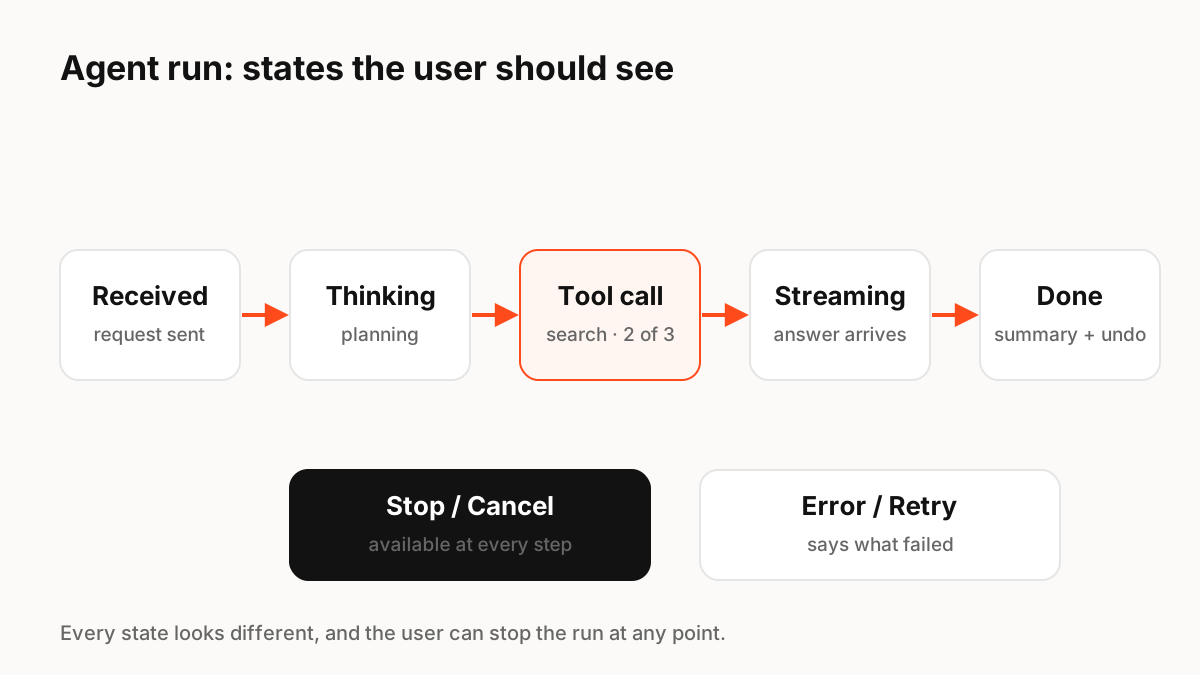
The states to design
Design each of these as its own state with its own look and words, not as one spinner:
- Received: confirm the request instantly (under 0.1 s), for example by showing the message in the thread.
- Thinking: a calm indicator near where the answer will appear. Avoid fake progress percentages.
- Tool call: name the step in plain words ("Searching the docs", "Reading 3 files"), with a count if you know it.
- Waiting for approval: a clear pause when the agent needs permission before acting.
- Streaming: show output as it arrives; stop the thinking indicator as soon as text starts.
- Done: a short summary of what changed, with undo where possible.
- Stopped and failed: say what happened, what was kept and how to retry.
Show the plan, not the raw log
Long logs of tool calls are useful for debugging but overwhelming for most users. A good default is a one-line status for the current step, plus a collapsed list of completed steps that people can expand. Developers and power users can open the detail; everyone else sees progress in plain language. Protocols such as AG-UI, an open event-based standard for connecting agents to user-facing apps, exist partly so front ends can receive these step events in a consistent way.
Control and trust
People trust agents more when they stay in control. Keep a stop button visible during the whole run. Ask for confirmation before irreversible actions such as sending, paying or deleting, and show exactly what will happen. After the run, make it easy to undo, edit or retry a single step instead of starting over.
Motion for agent states
Motion is a strong signal for "something is happening", but loops get tiring in long runs. Use a gentle, low-contrast loop for thinking, a distinct change when a tool call starts, and a clear settle when the run finishes. Respect the reduced-motion setting by swapping movement for a subtle opacity change. Voice assistants often use an animated orb with clearly different idle, listening, thinking and speaking states.
Key Principles to Remember
- Design received, thinking, tool call, approval, streaming, done, stopped and failed as separate states
- Name the current step in plain language; collapse the full log
- Keep stop visible for the whole run and confirm irreversible actions
- After about 10 seconds people need progress information
- Use calm motion and respect reduced-motion settings
Frequently Asked Questions
Sources
- Response Times: The 3 Important Limits — Nielsen Norman Group
- Progress Indicators Make a Slow System Less Insufferable — Nielsen Norman Group
- AG-UI Overview: Agent User Interaction Protocol — AG-UI
- Understanding SC 2.3.3: Animation from Interactions — W3C WAI