Command Palettes vs Nested Navigation: When Cmd+K Beats the Sidebar
What command palettes are good at, where they fail, and how to design one alongside navigation: search, fuzzy matching, shortcuts and discoverability.
Core Takeaway
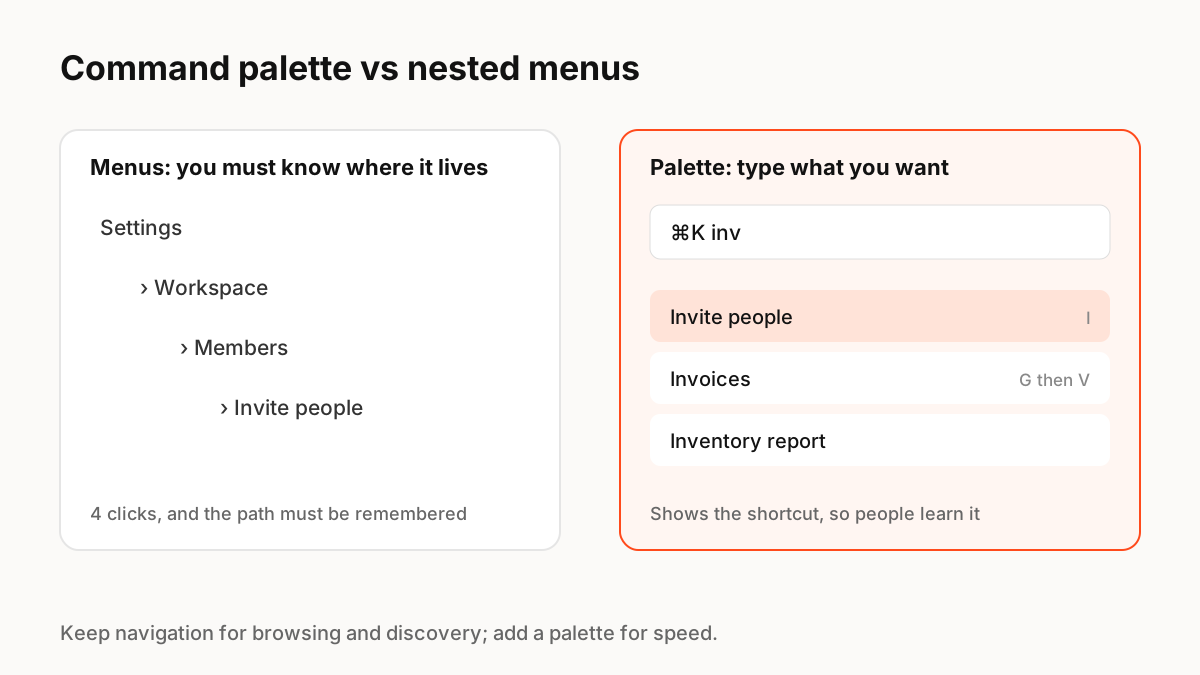
A command palette (often opened with Cmd+K or Ctrl+K) lets people type what they want to do instead of finding it in menus. It is faster for frequent users and helps them discover features and shortcuts. It does not replace navigation: new users still need visible structure to learn what exists. The best products offer both.
Why command palettes spread
Command palettes started in developer tools. In Visual Studio Code, Ctrl+Shift+P opens the Command Palette, which gives access to all of the editor's functionality from one keyboard-driven window. Products such as Superhuman made Cmd+K the centre of the experience: one shortcut to do any action, which also teaches the dedicated shortcut for next time. Superhuman argues that people prefer search to menus, because menus only help if you already understand how they are organised.
What a good palette needs
The difference between a useful palette and a frustrating one is mostly search quality:
- Fuzzy matching: typos and partial words should still find the right command (Superhuman notes that "lnik" should still find "link").
- Synonyms: people type "invite", "add member" or "share"; all should work.
- Ranking: recent and frequent commands first, then the best text match.
- Show shortcuts next to each result so people learn them.
- Mix in objects as well as actions: pages, people, files.
- Keyboard first, but fully usable with a mouse and screen reader.
Where palettes fall short
A palette is invisible until opened, so it cannot teach a new user what the product does. People must know, or guess, the word for what they want. That is why removing navigation in favour of a palette usually hurts new and occasional users. Keep a clear sidebar or menu for browsing, and treat the palette as a fast lane for people who already know where they are going.
Accessibility
Use the established combobox and listbox patterns so screen readers announce results, keep focus inside the palette while it is open, close it with Escape and return focus where it was. Do not override shortcuts that assistive technologies or browsers rely on.
Key Principles to Remember
- Palettes are fast for frequent users and help them discover shortcuts
- They are invisible to new users, so keep visible navigation
- Search quality decides success: fuzzy matching, synonyms, good ranking
- Show shortcuts in results so people learn them
- Follow combobox accessibility patterns
Frequently Asked Questions
Sources
- How to build a remarkable command palette — Superhuman
- User interface: Command Palette — Visual Studio Code docs
- Progressive Disclosure — Nielsen Norman Group