Floating Action Buttons: When to Use a FAB and How to Animate It
When a floating action button helps, when it hurts, one FAB per screen, extended FABs and FAB menus, scroll behaviour and motion.
Core Takeaway
Use a floating action button for the single most important action on a screen, such as compose or create. Show only one per screen, skip it on screens without a clear primary action, use an extended FAB with a label when the icon alone is unclear, and keep its motion purposeful when it expands, collapses on scroll or opens a menu.
What a FAB is for
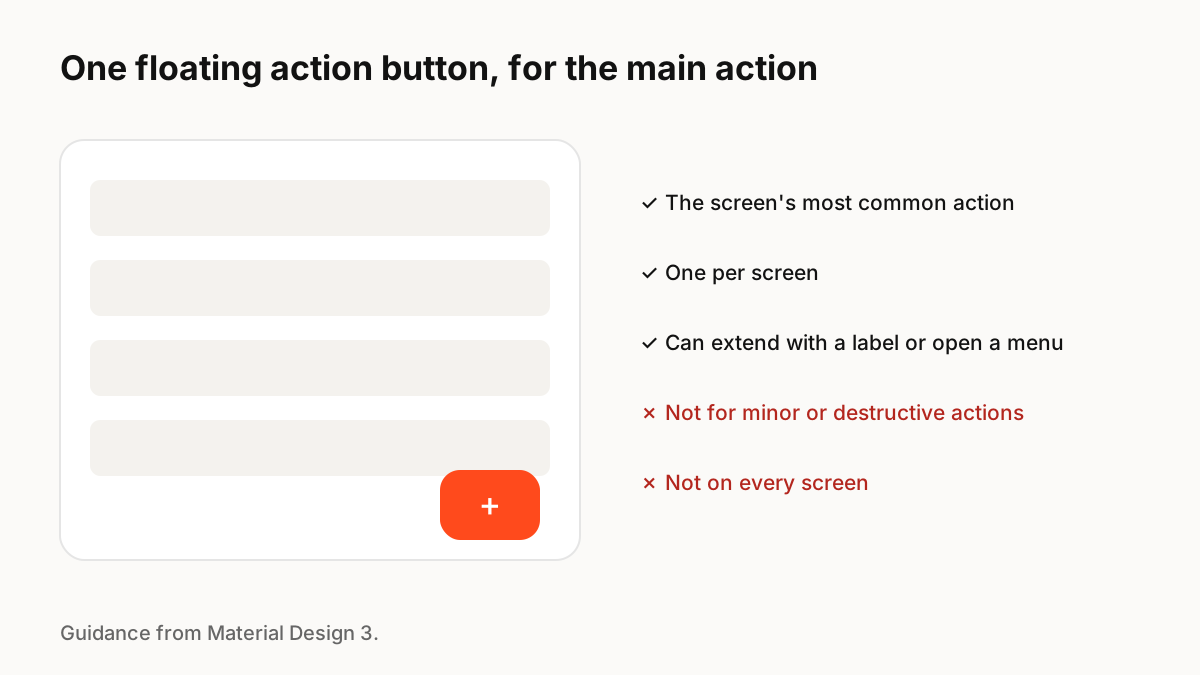
Material Design 3 describes the FAB as the screen's primary action and advises against displaying multiple FABs on one screen. It also notes that FABs are not needed on every screen, for example when images already represent the primary actions.
Variants
Material offers several forms:
- Standard FAB: an icon for a well-known action such as compose.
- Extended FAB: icon plus label, clearer for less obvious actions and on larger screens.
- Large FAB: for prominent primary actions, suited to wider windows such as tablets and unfolded foldables.
- FAB menu: the FAB opens a short set of related actions.
When not to use one
Skip the FAB for minor or destructive actions, on screens where the main action is already obvious, and where it would cover important content or controls. On iOS, a FAB is not a native pattern; toolbar or navigation bar buttons are more familiar to iPhone users.
Motion
A FAB often collapses from extended to standard as people scroll, then expands again, and it can transform into a sheet or menu when tapped. These transitions explain where the action went and where its content came from. Keep them short, avoid bouncing on every scroll, and respect reduced motion.
Key Principles to Remember
- One FAB per screen, for the primary action
- Not every screen needs one
- Use an extended FAB when the icon is not obvious
- Avoid FABs for minor or destructive actions
- Use motion to show where the FAB's content comes from
Frequently Asked Questions
Sources
- FAB guidelines — Material Design 3