Information Density in B2B SaaS: Designing Dashboards for Power Users and Novices
How to design dense B2B dashboards and tables that experts can scan quickly without overwhelming new users: density modes, hierarchy, progressive disclosure.
Core Takeaway
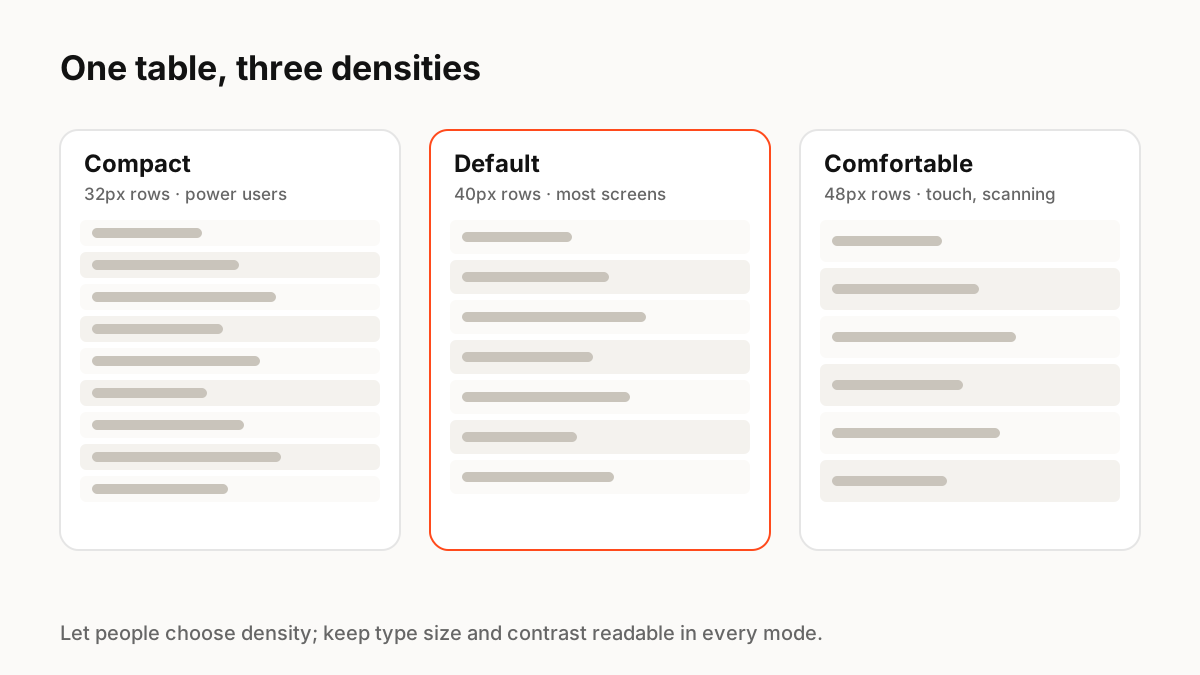
Dense interfaces are not the problem; disorganised ones are. Experts want more information per screen, so give them it with strong hierarchy, consistent alignment and charts that use position and length. Protect novices with sensible defaults and progressive disclosure, and let people choose a density level, as design systems such as Carbon do for tables.
Density is a feature for experts
People who use a B2B tool all day, such as analysts, support agents and operators, often prefer to see more at once, because scrolling and switching tabs costs them time. Making everything spacious for the sake of a clean screenshot can make their work slower. The goal is information that is dense but easy to scan.
Let people choose density
Design systems now build density into components. IBM's Carbon data table, for example, offers five row heights, from extra small (24px) for highly dense layouts to extra large (64px) for easier scanning, with medium (40px) as the default.
- Offer two or three density settings, remembered per user.
- Change spacing and row height, not font size or contrast.
- Keep touch targets large enough on touch devices regardless of density.
Hierarchy makes density readable
Nielsen Norman Group defines dashboards as visualisations that give at-a-glance information people can act on quickly, and recommends encoding quantities with length and 2D position, which people read fastest. In practice: put the few numbers that drive decisions at the top, align everything to a grid, use colour only for meaning (status, alerts), and right-align numbers so they can be compared.
Protect novices without slowing experts
Progressive disclosure keeps advanced options available but out of the way. Start new users with a focused default view, let them add columns, filters and widgets as they need them, and save views so experts can return to their dense setup instantly.
Motion in dense interfaces
In data-heavy screens, motion should explain change, not decorate: highlight a value that just updated, animate a row into its new sorted position, or show a chart transition so people can follow what moved. Keep it short, and avoid continuous animation that competes with the data.
Key Principles to Remember
- Experts benefit from dense screens; disorganisation is the real problem
- Offer density settings by changing spacing, not type size or contrast
- Use length and position for numbers; colour only for meaning
- Progressive disclosure protects novices
- Use motion to explain changes in data, not to decorate
Frequently Asked Questions
Sources
- Data table usage — Carbon Design System (IBM)
- Dashboards: Making Charts and Graphs Easier to Understand — Nielsen Norman Group
- Progressive Disclosure — Nielsen Norman Group