Undo Instead of Confirmation Dialogs: Designing Less Interruptive UI
Why routine "Are you sure?" dialogs fail, when a confirmation is still right, and how to design undo toasts that are clear, accessible and safe.
Core Takeaway
Use undo for actions that can be reversed: do the action immediately, then show a short, non-blocking message with an Undo button. Keep confirmation dialogs for serious, irreversible actions such as permanent deletion or large payments, and make them specific: name the object and the consequence. Confirming routine actions trains people to click "OK" without reading.
Why routine confirmations stop working
Nielsen Norman Group's guidance on confirmation dialogs is clear: use them before actions with serious consequences, and do not use them for routine actions. When people see the same dialog many times, they confirm out of habit, and the dialog stops preventing the errors it was meant to catch. The same article recommends offering undo wherever possible instead of relying on a warning.
Confirm or undo: a simple rule
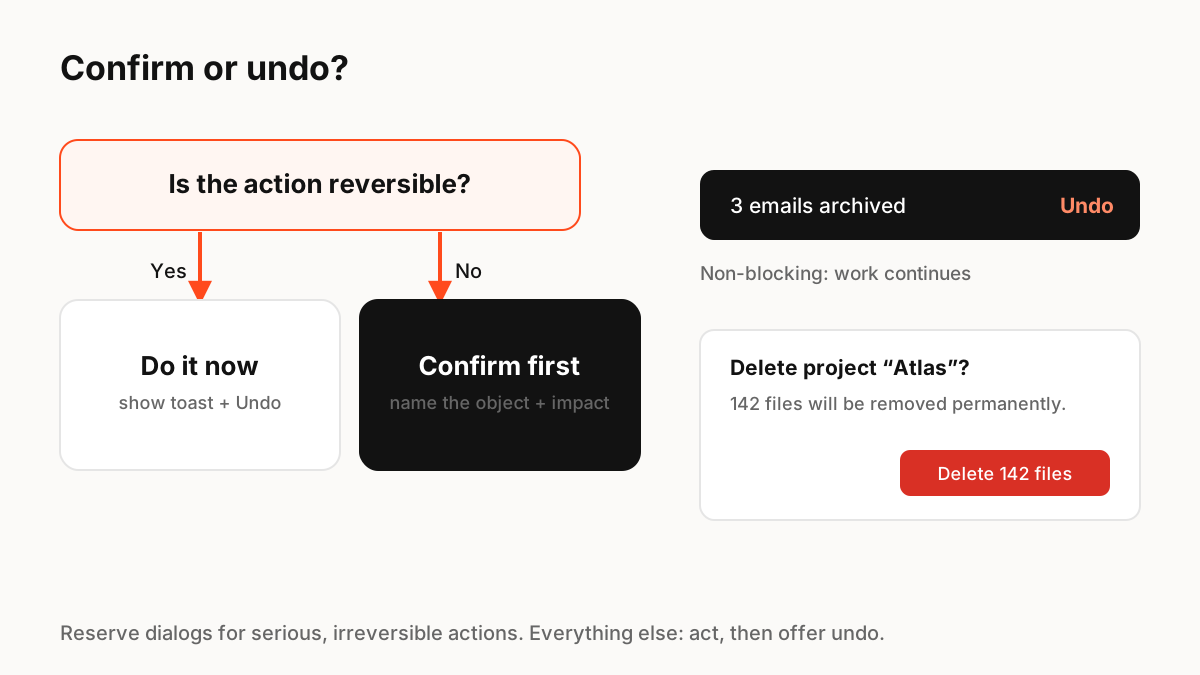
Ask one question: can this be reversed? If yes, act and offer undo. If no, confirm first, and make the confirmation specific.
- Archive, move, mark as read, remove from a list: act now, offer undo.
- Send a message: many products delay sending briefly so it can be undone. Gmail lets people choose an undo window of 5, 10, 20 or 30 seconds.
- Delete permanently, pay, publish publicly: confirm first, naming the item and the impact ("Delete 142 files").
- Better still: make deletion reversible with a trash or recovery period, then use undo.
Designing the undo message
Material Design calls this component a snackbar: a brief, minimally interruptive message that can contain a single action, unlike a dialog, which requires a response. Write what happened in a few words, put Undo as the single action, and keep it on screen long enough for people to react. Do not hide important undo actions in messages that vanish in two seconds.
Accessibility details
Toasts that disappear on their own can be missed by screen reader users and people who need more time. Announce the message through a polite live region, let keyboard users reach the Undo button, pause the timer while the message is hovered or focused, and provide another way to reverse the action, such as a history list or trash.
Motion for undo
A short, calm entrance from the edge of the screen and a clear exit help people notice the message without being interrupted. When Undo is pressed, animate the item back into place so the reversal is visible. Respect reduced-motion settings with a simple fade.
Key Principles to Remember
- Reversible actions: act immediately and offer undo
- Irreversible, serious actions: a specific confirmation that names the impact
- Routine confirmations get clicked through out of habit
- Make undo messages accessible: live region, keyboard focus, enough time
- Animate the reversal so people see it worked
Frequently Asked Questions
Sources
- Confirmation Dialogs Can Prevent User Errors — If Not Overused — Nielsen Norman Group
- Send or unsend Gmail messages — Gmail Help
- Snackbar guidelines — Material Design 3