How to Set Up the ExodeUI MCP Server in Cursor
Step-by-step setup for the ExodeUI MCP server in Cursor (and Claude Code): the mcp.json entry, checking the tools, first prompts and safe review.
Core Takeaway
Add an entry to your project's .cursor/mcp.json that runs the claude-exode-mcp package with npx, reload Cursor, and check that the exode server and its tools appear in Cursor's MCP settings. Then ask Cursor's agent to create or edit an animation in plain language, and review the result in the ExodeUI editor before shipping.
What you need
Cursor, Node.js (so npx is available) and an ExodeUI account if you want to open results in the editor. The ExodeUI MCP server is published on npm as claude-exode-mcp; it runs locally through npx, so there is nothing else to install by hand.
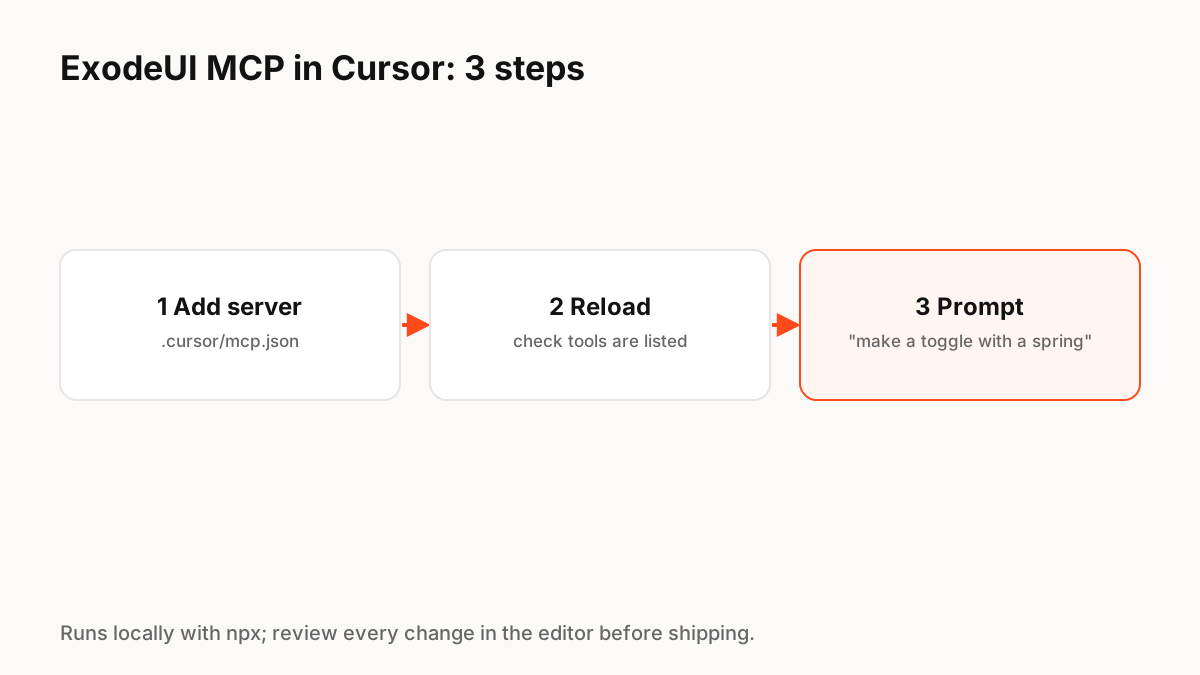
Step 1: add the server to mcp.json
Cursor reads custom MCP servers from an mcp.json file; a project-level file lives at .cursor/mcp.json in your repository. Local command-line servers use type "stdio" with a command and arguments. The entry for ExodeUI runs npx with the claude-exode-mcp package (see the code block below).
Step 2: reload and check the tools
Reload Cursor, open its MCP settings and confirm the exode server is running and its tools are listed. If it fails to start, check that npx works in your terminal and that your Node.js version is current.
Step 3: prompt
Ask in plain language and be specific about states and feel:
- "Create a toggle with on and off states and a soft spring between them."
- "Add a loading state to the save button that pulses gently, then a success check."
- "Make the success animation faster and reduce the overshoot."
Using Claude Code instead
In Claude Code, add the same server with one command: claude mcp add exode npx -y claude-exode-mcp. Claude Code also supports project-level configuration in a .mcp.json file.
Review before you ship
An agent that can edit files can also make mistakes. Keep the .exode files in Git so changes are diffable, open results in the ExodeUI editor to check timing and every state, and test reduced-motion behaviour.
Production Implementation Snippet
// .cursor/mcp.json
{
  "mcpServers": {
    "exode": {
      "type": "stdio",
      "command": "npx",
      "args": ["-y", "claude-exode-mcp"]
    }
  }
}

# Claude Code alternative
claude mcp add exode npx -y claude-exode-mcp
Key Principles to Remember
- The server is the npm package claude-exode-mcp, run with npx
- In Cursor, add it to .cursor/mcp.json as a stdio server
- Reload and confirm the tools appear in MCP settings
- Prompt with states and feel; tune numbers afterwards
- Keep files in Git and review changes in the editor
Frequently Asked Questions
Sources
- claude-exode-mcp — npm
- Model Context Protocol (MCP) — Cursor docs
- Connect Claude Code to tools via MCP — Claude Code docs