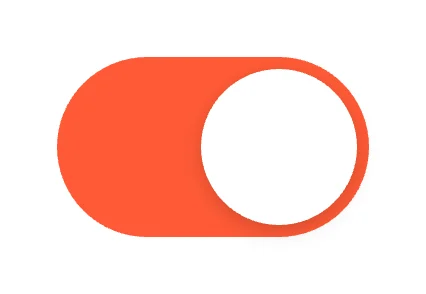
Classic SwitchClassic Switches
Toggle Studio · 100 designs
Animated toggles. Switches with knob physics, icon morphs, tiny scenes, characters and levers.
Every toggle runs on a native Toggle widget with its own motion. The On state is a state machine input, so your app flips it and listens for changes.
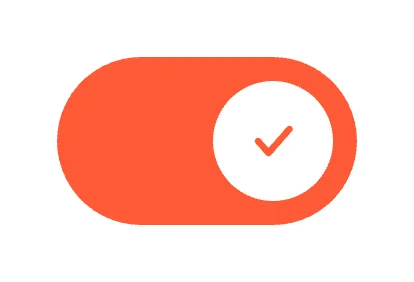
Outline SwitchClassic Switches
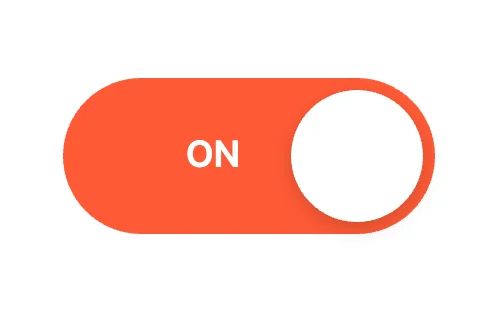
Sliding WordsClassic Switches
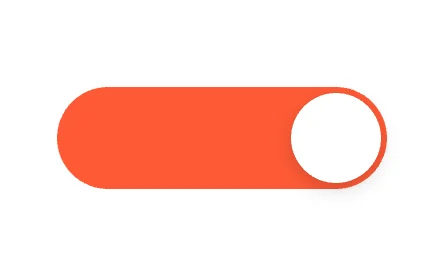
Bounce KnobKnob Physics
Elastic BandKnob Physics
Spin KnobKnob Physics
Motion TrailKnob Physics
Play / PauseIcon Morph
BellIcon Morph
HeartIcon Morph

City LightsScenery
CloudsScenery
Thumb HaloClassic Switches
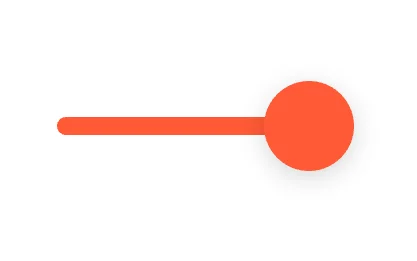
Thin TrackClassic Switches
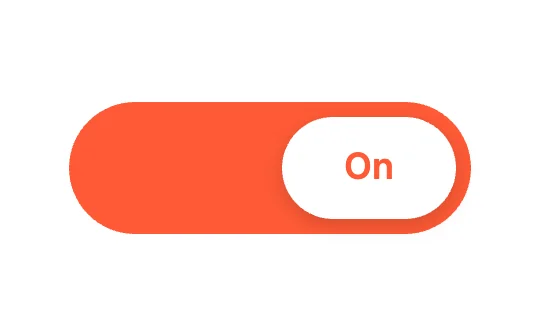
Wide PillClassic Switches
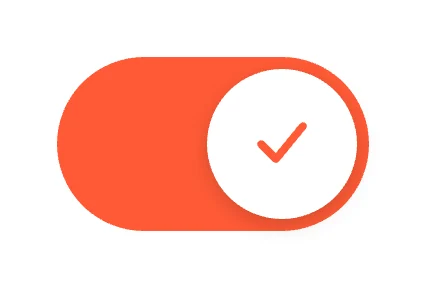
Check SwitchClassic Switches
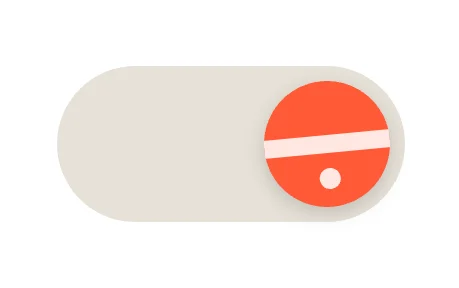
Rolling BallKnob Physics
Magnet SnapKnob Physics
Gravity DropKnob Physics
Cross / CheckIcon Morph
EyeIcon Morph
MicrophoneIcon Morph
Day & NightScenery
Summer & WinterScenery
Square SwitchClassic Switches
Inner LabelClassic Switches
Stretch KnobClassic Switches
Jelly KnobKnob Physics
Squash Against WallKnob Physics
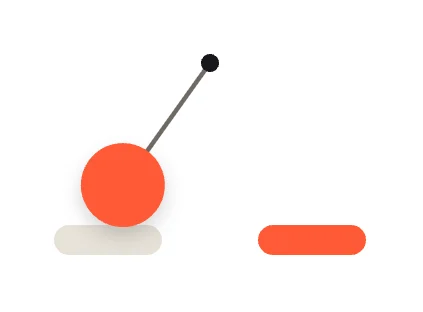
PendulumKnob Physics
Sun / MoonIcon Morph
LockIcon Morph
Wi-FiIcon Morph
PowerIcon Morph
TideScenery
LampScenery
Loading more… 36 of 100
How to use them
- Open Toggle Studio
It is in the Plugins menu of the editor.
- Pick a category and a design
Classic Switches, Knob Physics, Icon Morph, Scenery, Characters, Mechanical, Light & Glow, Segmented & Multi-State, Transition Effects or Shapes & Geometry.
- Set the theme and accent
Then insert it on the artboard.
- Connect it
Set On from your app, or listen for the user flipping it with onToggle.
Best toggles, by runtime
Questions
How do I use these toggles in my app?
Open one in ExodeUI, export the file and play it with the ExodeUI runtime for your stack. Tap it. Your app reads or sets the On input.
Are these toggles free?
Yes. Toggle Studio is built into the ExodeUI editor and included in the free Community plan.
Can I change the design?
Yes. Every part is a native layer in the editor: colours, type, motion and logic, and the input names your code uses stay the same.
More kinds
Make your own in ExodeUI
Free to start. Every studio behind this library is built into the editor, and everything it makes stays native and editable.
Try ExodeUI for free