Notification Overload: Designing Alerts People Do Not Turn Off
How to design notifications people value: asking for permission at the right time, interruption levels, batching, in-app notification centres and easy controls.
Core Takeaway
People turn off notifications that interrupt them for things they do not care about. Ask for permission only after showing value, say what notifications will contain, match the interruption level to the urgency, batch low-priority updates instead of sending bursts, and make every type easy to turn off individually.
The common mistakes
Nielsen Norman Group lists five frequent push-notification mistakes: asking for permission before people see any value, not telling them what notifications will contain, sending notifications in bursts, sharing irrelevant content, and making notifications hard to turn off. In their studies, many people immediately tap "Don't Allow" on permission prompts shown at first launch.
Match the interruption to the urgency
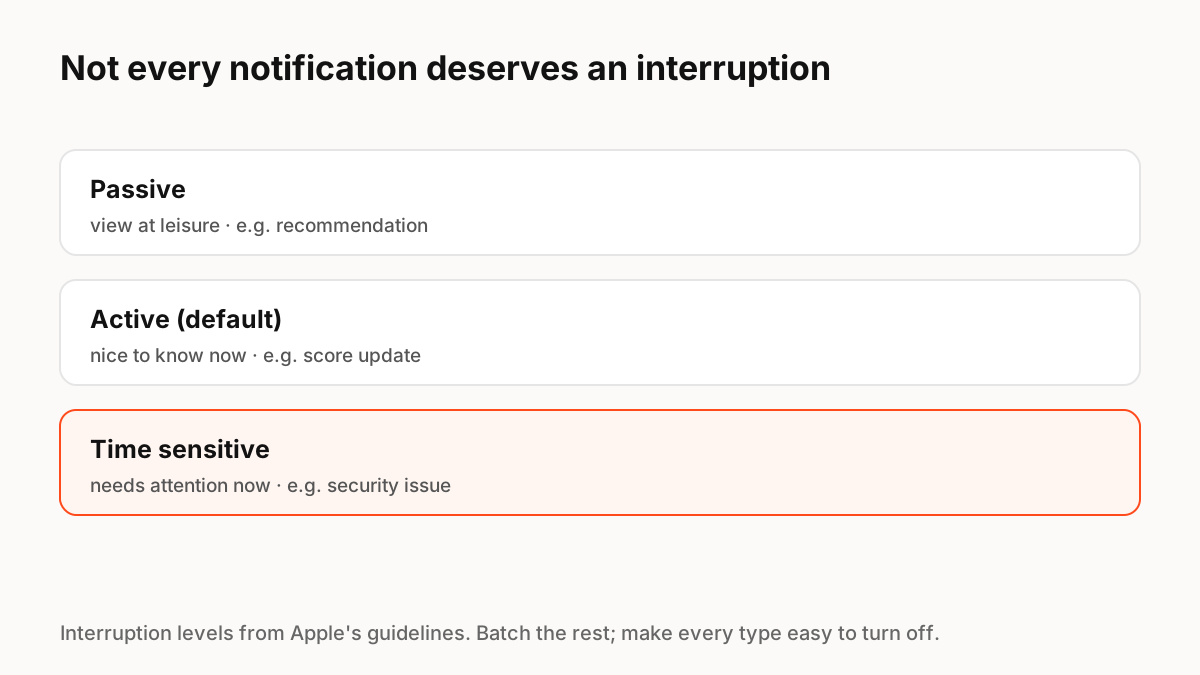
Apple's guidelines define interruption levels for notifications, and the idea applies to any product:
- Passive: information people can view at their leisure, such as a recommendation.
- Active (the default): useful to know when it arrives, such as a score update.
- Time sensitive: needs attention now, such as a security issue or a delivery.
Respect people's focus
Operating systems now let people schedule notification summaries and set up Focus modes that filter alerts during work, sleep or driving. Design with that in mind: summaries should be readable out of context, and only genuinely urgent items should be marked time sensitive.
In-app notification centres
For collaborative tools, much of the overload happens inside the product. Group related updates ("5 comments on Design review"), separate mentions and assignments from general activity, let people mark all as read, and give per-project or per-type controls. An unread badge should mean something; a badge that is always on is ignored.
Motion and sound
A notification bell that animates on every update quickly becomes noise. Use motion and sound sparingly, for the time-sensitive tier, and give each state of the bell (none, unread, muted) a clear, calm look.
Key Principles to Remember
- Ask for permission after showing value, and say what you will send
- Match the interruption level to the urgency
- Batch low-priority updates; never send bursts
- Give per-type controls and an easy way to turn off
- Use motion and sound only for urgent items
Frequently Asked Questions
Sources
- Five Mistakes in Designing Mobile Push Notifications — Nielsen Norman Group
- Managing notifications — Apple Human Interface Guidelines